Website launch checklist — 15 checks before you open the doors (with AI prompts)
A plain-English website launch checklist in 4 areas — get found, look good when shared, stay safe and earn trust — with copy-paste prompts for Claude or Cursor.

I almost launched a website Google couldn't see.
The design was done. The pages looked great. But one leftover line in a settings file was quietly telling Google: "don't come in."
That's when I started treating every launch like opening a shop.
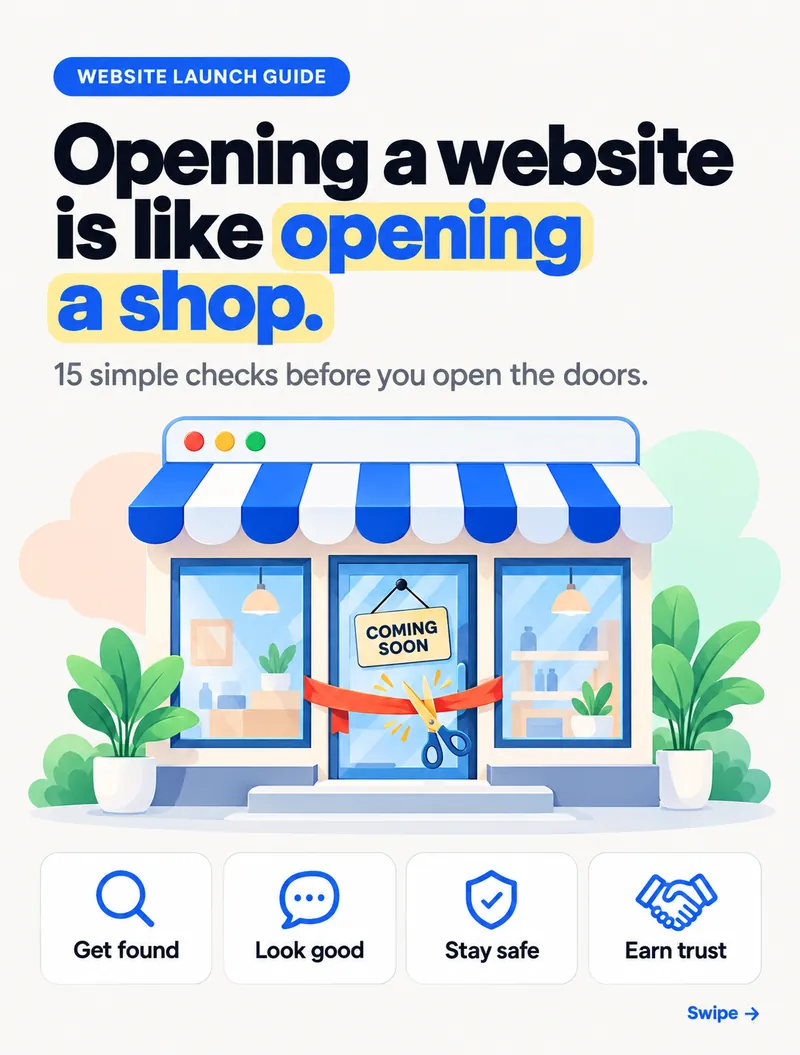
Before the doors open, I check 15 things in 4 areas. None of them need coding skills anymore — with an AI tool like Claude Code or Cursor open on your website's files, you can fix most of this in an afternoon. I've added a ready-to-use prompt for each area below.
Before you start: get your shop keys ready
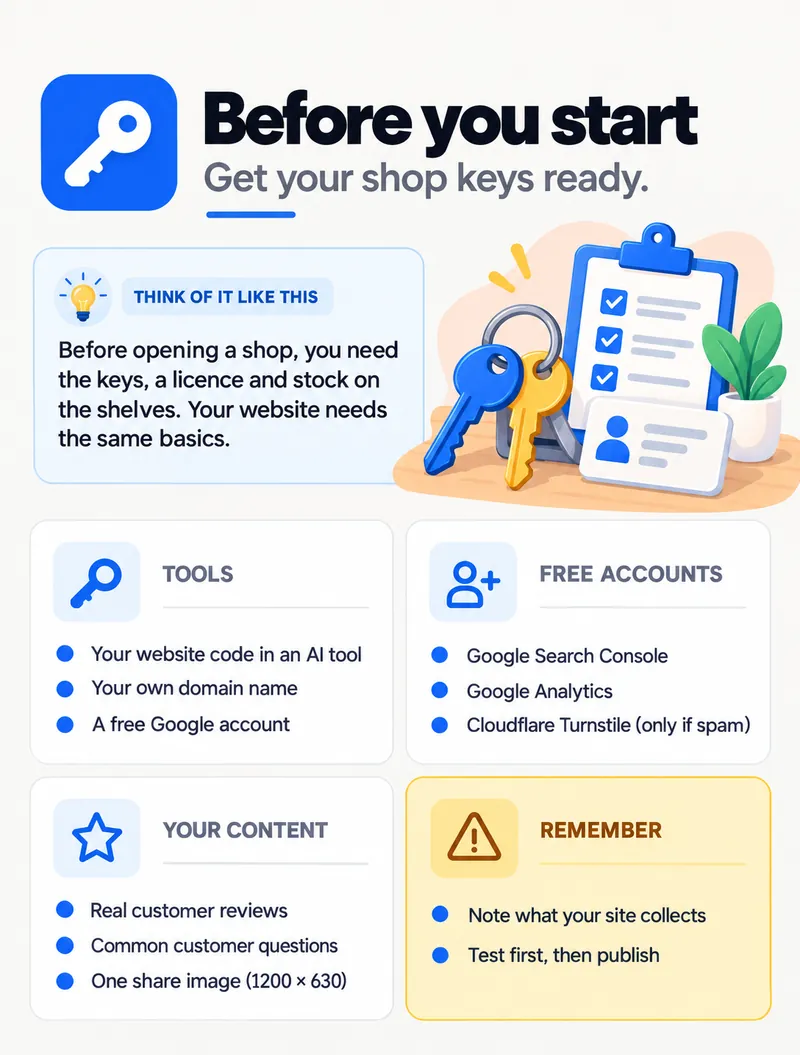
Before opening a shop, you need the keys, a licence and stock on the shelves. Your website needs the same basics:
- Tools: your website code open in an AI tool, your own domain name, and a free Google account.
- Free accounts: Google Search Console, Google Analytics, and Cloudflare Turnstile (only if you get spam).
- Your content: real customer reviews, the questions customers actually ask you, and one share image (1200 × 630 pixels).
- Remember: note down what your site collects (form fields, cookies), and always test first, then publish.
The full checklist
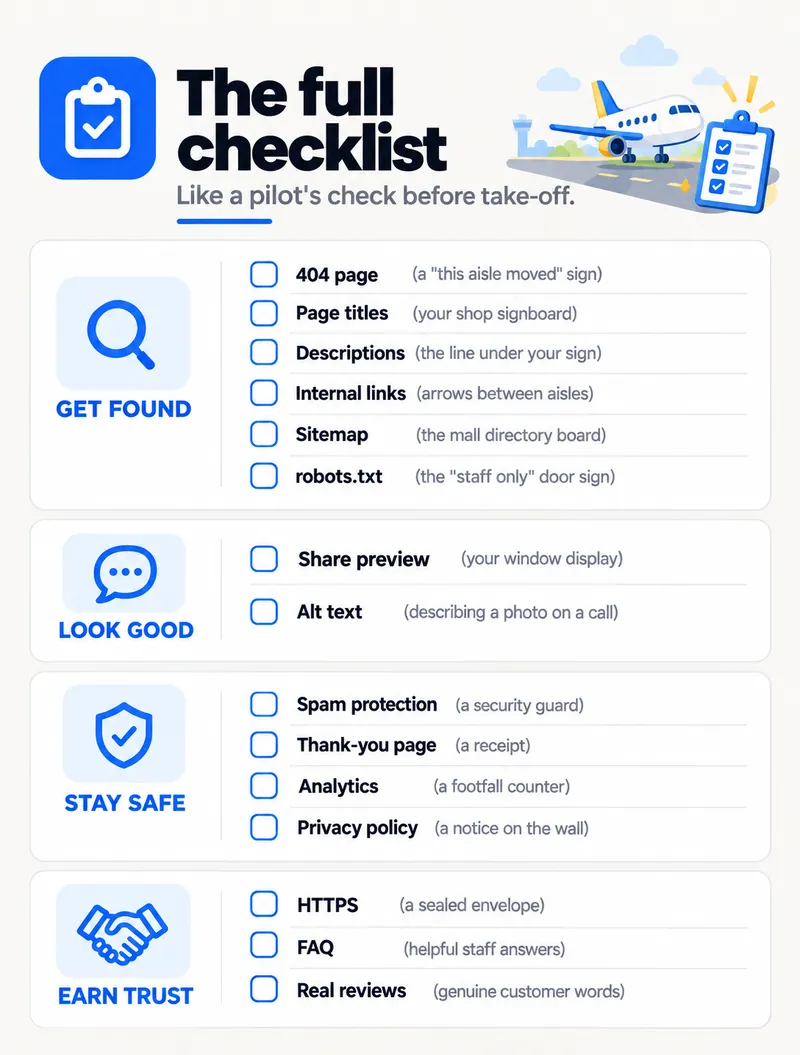
Like a pilot's check before take-off. Here are all 15, with a shop comparison so each one makes sense:
Get found
- 404 page — a "this aisle moved" sign
- Page titles — your shop signboard
- Descriptions — the line under your sign
- Internal links — arrows between aisles
- Sitemap — the mall directory board
- robots.txt — the "staff only" door sign
Look good when shared
- Share preview — your window display
- Alt text — describing a photo on a call
Stay safe & measure
- Spam protection — a security guard
- Thank-you page — a receipt
- Analytics — a footfall counter
- Privacy policy — a notice on the wall
Earn trust
- HTTPS — a sealed envelope
- FAQ — helpful staff answers
- Real reviews — genuine customer words
1. Get found on Google
Google is like a visitor reading the mall directory. If your shop isn't listed or has no signboard, nobody finds you.
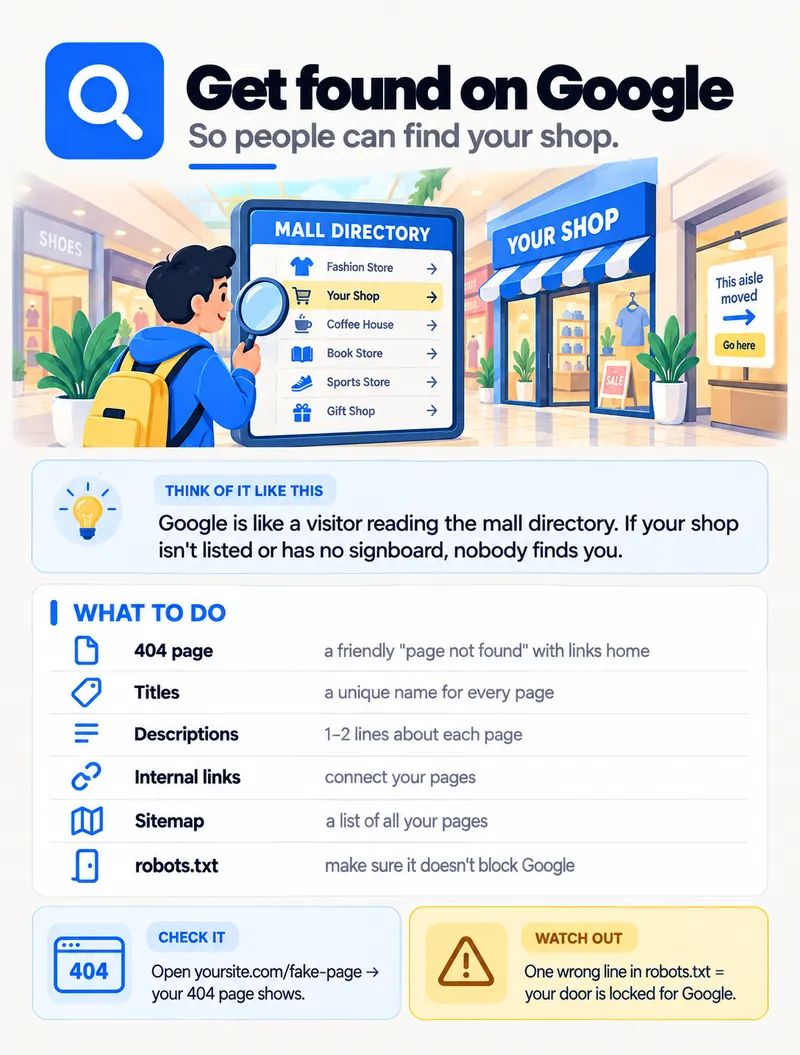
- 404 page — a friendly "page not found" with links back home, instead of your host's default error.
- Titles — a unique name for every page (around 50–60 characters), not "Home" on all of them.
- Descriptions — 1–2 lines about each page. This is often the text people see under your link in Google.
- Internal links — connect your pages, so visitors and Google can move from one to the next.
- Sitemap — a
sitemap.xmlfile listing all your pages. - robots.txt — make sure it doesn't block Google.
Check it: open yoursite.com/fake-page — your 404 page should show. Then open yoursite.com/robots.txt and make sure there's no Disallow: / line.
Watch out: one wrong line in robots.txt means your door is locked for Google. Also check for a noindex tag left over from development — it does the same damage.
AI prompt:
Check this website for search basics and fix what's missing:
1. Every page has a unique <title> (50-60 characters) and meta description (120-155 characters) that describe that page.
2. There is a custom 404 page with links back to the homepage and main pages, and the server is set up to use it.
3. sitemap.xml lists every public page with full https URLs, and robots.txt links to it.
4. robots.txt does not block the site, and no public page has a noindex tag.
5. Important pages link to each other with descriptive link text.
Show me a list of every change before you make it.
2. Look good when shared
A link preview is your shop window. A nice display makes people walk in. A blank window, they walk past.
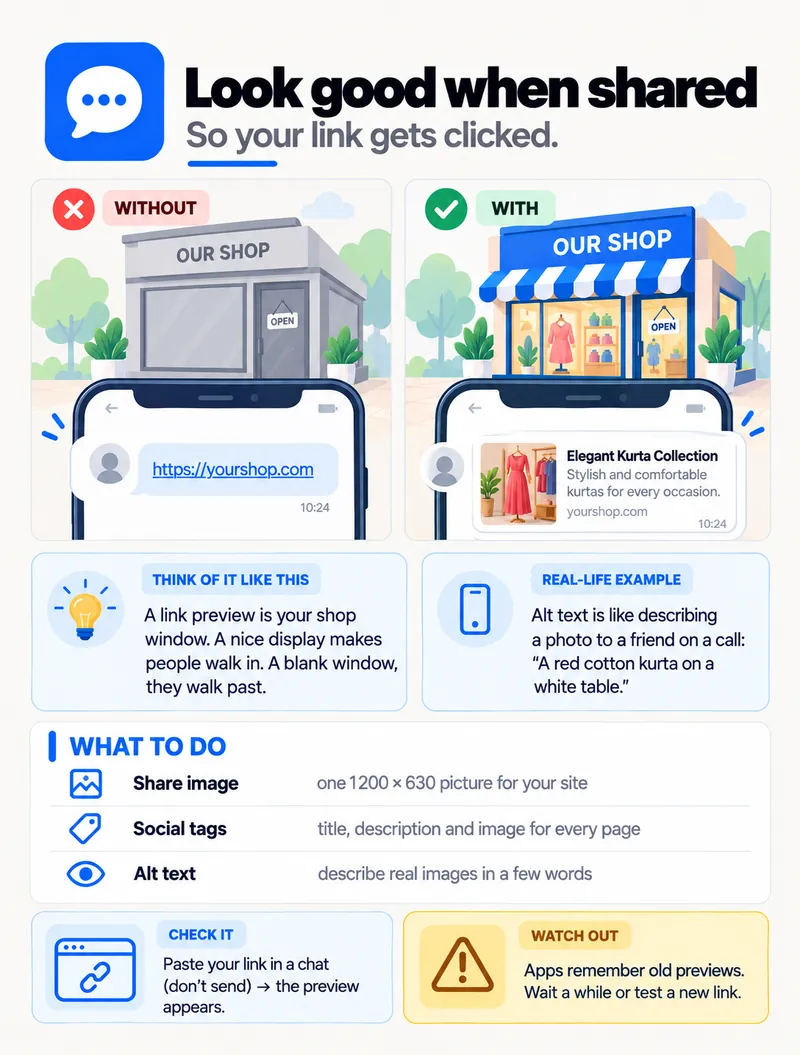
- Share image — one 1200 × 630 picture for your site, used when the link is shared on WhatsApp, LinkedIn or Facebook.
- Social tags — a title, description and image for every page (the Open Graph and Twitter tags).
- Alt text — describe real images in a few words. Alt text is like describing a photo to a friend on a call: "A red cotton kurta on a white table."
Check it: paste your link into a chat (don't send it) — the preview should appear with the image and title.
Watch out: apps remember old previews. If you've just fixed it, wait a while or test with a new link (adding ?v=2 to the end works).
AI prompt:
Add social sharing tags to every page of this site: og:title, og:description, og:image (1200x630, full https URL), og:url, og:type, and twitter:card set to summary_large_image. Use each page's own title and description.
Then find every <img> without useful alt text. Write short, specific alt text for images that show something real, and use alt="" for purely decorative images.
3. Stay safe & measure
A guard keeps fake visitors out. A receipt confirms the order. A counter shows how many came in. A notice tells them what you keep.
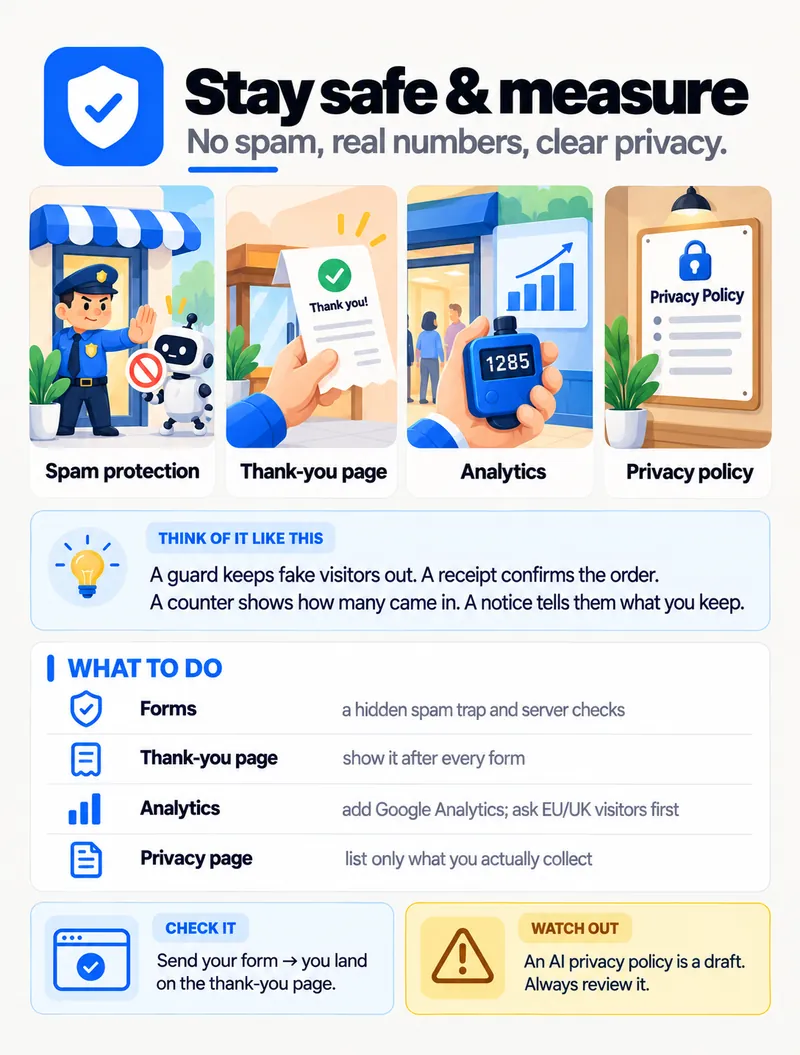
- Forms — add a hidden spam trap (a "honeypot" field bots fill in and people never see) and check submissions on the server. Add Cloudflare Turnstile only if spam still gets through.
- Thank-you page — show it after every form, so people know their message arrived. It also lets you count form submissions in analytics.
- Analytics — add Google Analytics. If you have EU or UK visitors, ask for their consent before tracking.
- Privacy page — list only what you actually collect: form fields, analytics cookies, who you share data with.
Check it: send your own form — you should land on the thank-you page, and the message should reach your inbox.
Watch out: an AI-written privacy policy is a draft. Always read and review it — it must match what your site really does.
AI prompt:
Review every form on this site:
1. Add a hidden honeypot field and reject submissions that fill it in.
2. After a successful submission, send the visitor to a thank-you page (mark it noindex).
Then add Google Analytics with measurement ID [G-XXXXXXX], with a simple cookie consent banner that only loads analytics after the visitor accepts.
Finally, list exactly what personal data this site collects and where it goes, and draft a plain-English privacy policy from that list. Don't add anything we don't actually collect.
4. Earn trust
HTTPS is a sealed envelope instead of a postcard. An FAQ is a helpful shop assistant. Real reviews are word of mouth from real customers.
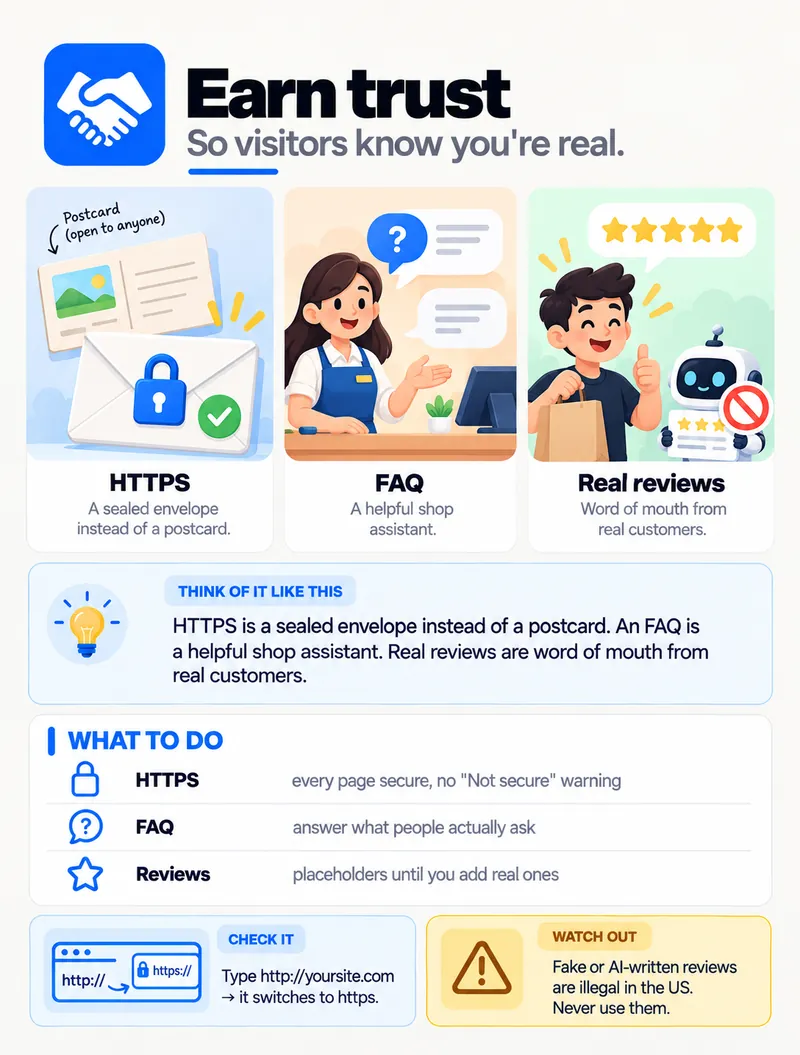
- HTTPS — every page secure, with no "Not secure" warning in the browser. Most hosts give you a free SSL certificate.
- FAQ — answer what people actually ask you on calls, WhatsApp and email — not questions you invented to fill space.
- Reviews — use only real ones, with the customer's permission. If you don't have any yet, leave the section out until you do.
Check it: type http://yoursite.com (without the s) — it should switch to https:// on its own.
Watch out: fake or AI-written reviews are illegal in the US (the FTC banned them in 2024) and they break Google's rules everywhere. Never use them — not even as "temporary" placeholders that go live by accident.
AI prompt:
1. Make sure every http:// URL redirects to https://, and find any images, scripts or links on the site still loading over http://.
2. Here are the questions customers ask us most: [paste your list]. Write a short FAQ section from them, in plain language, using only facts already on our site. Mark anything you're unsure about so I can check it.
3. Find any testimonials, star ratings or review counts on the site and list them, so I can confirm each one is real.
After you go live
Opening day isn't enough. You also need to put your shop on the map so people can find it. Four quick steps, in this order:
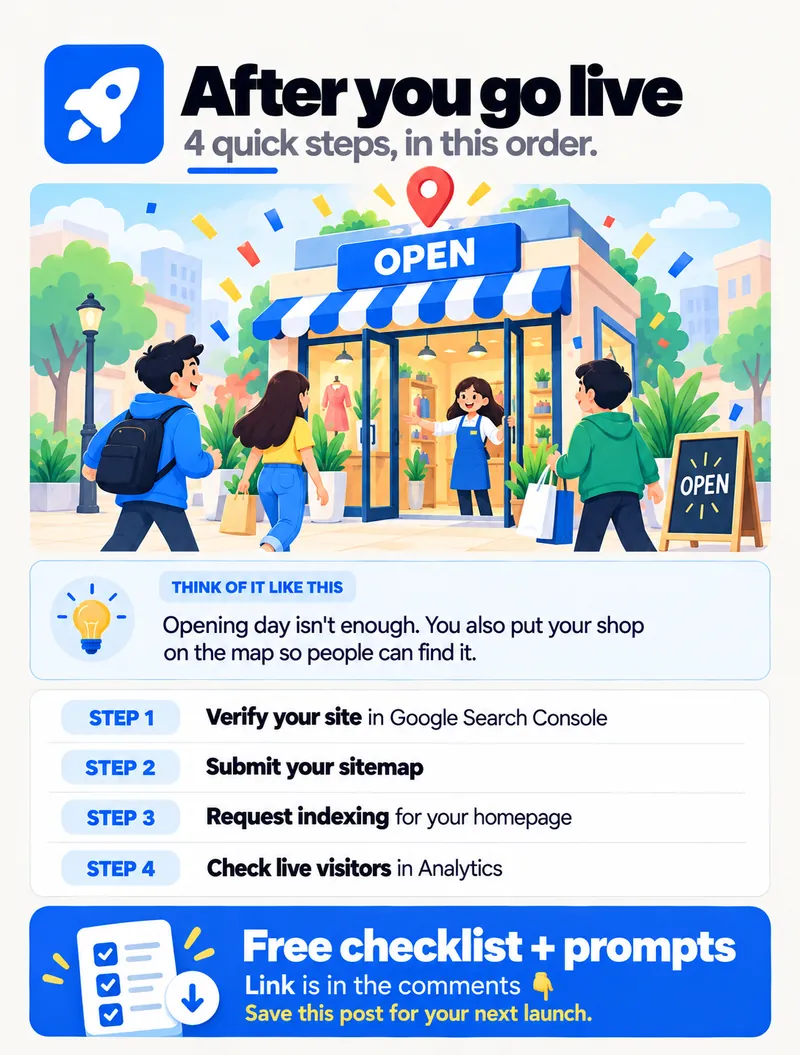
- Verify your site in Google Search Console.
- Submit your sitemap (
yoursite.com/sitemap.xml) in Search Console. - Request indexing for your homepage with the URL Inspection tool.
- Check live visitors in Analytics — open your site on your phone and watch yourself appear in the real-time report.
Want Bing too? Add the site to Bing Webmaster Tools — it can import everything from Search Console in one click.
Launch is also only the start. Here's what to keep doing after launch, and if your pages feel slow, see how to fix website speed and Core Web Vitals.
What did you forget on your last launch?
Save this checklist for your next one — and tell me the one thing you forgot last time.
Want a launch that's done right the first time?
At Bitlence every website we build goes through this checklist before it goes live — plus speed, security and redirect checks. See our web development services, or send us your site and we'll tell you what's missing.