
How to track your coding time without WakaTime (free and local-first)
WakaTime is great, but it needs an account and sends your activity to the cloud. Here are free, private ways to track coding hours in VS Code and Cursor.

If you bill clients by the hour, or you just want to know where your week went, you need some record of how long you actually spend coding. Guessing at the end of the day is always wrong — usually by a lot.
WakaTime is the tool most developers find first, and it's good. But it isn't the right fit for everyone. Here's when you might want something else, the options that exist, and how I track my own hours.
Why look beyond WakaTime?
WakaTime works by installing a plugin in your editor that sends "heartbeats" to its servers. Its dashboards are excellent: languages, files, branches, projects, editors, team leaderboards.
The trade-offs are what push people to look for alternatives:
- You need an account and an API key before anything is tracked.
- Your activity lives on someone else's server. File names, project names and branch names all leave your machine. Some clients and employers don't allow that.
- The free plan keeps limited history. Full history and some reports are paid.
- It needs the internet to sync and show your stats.
None of these are problems if you're happy with a cloud service. But if you work on client code under NDA, or you just prefer your data to stay with you, there are better fits.
Your options, from simplest to most complete
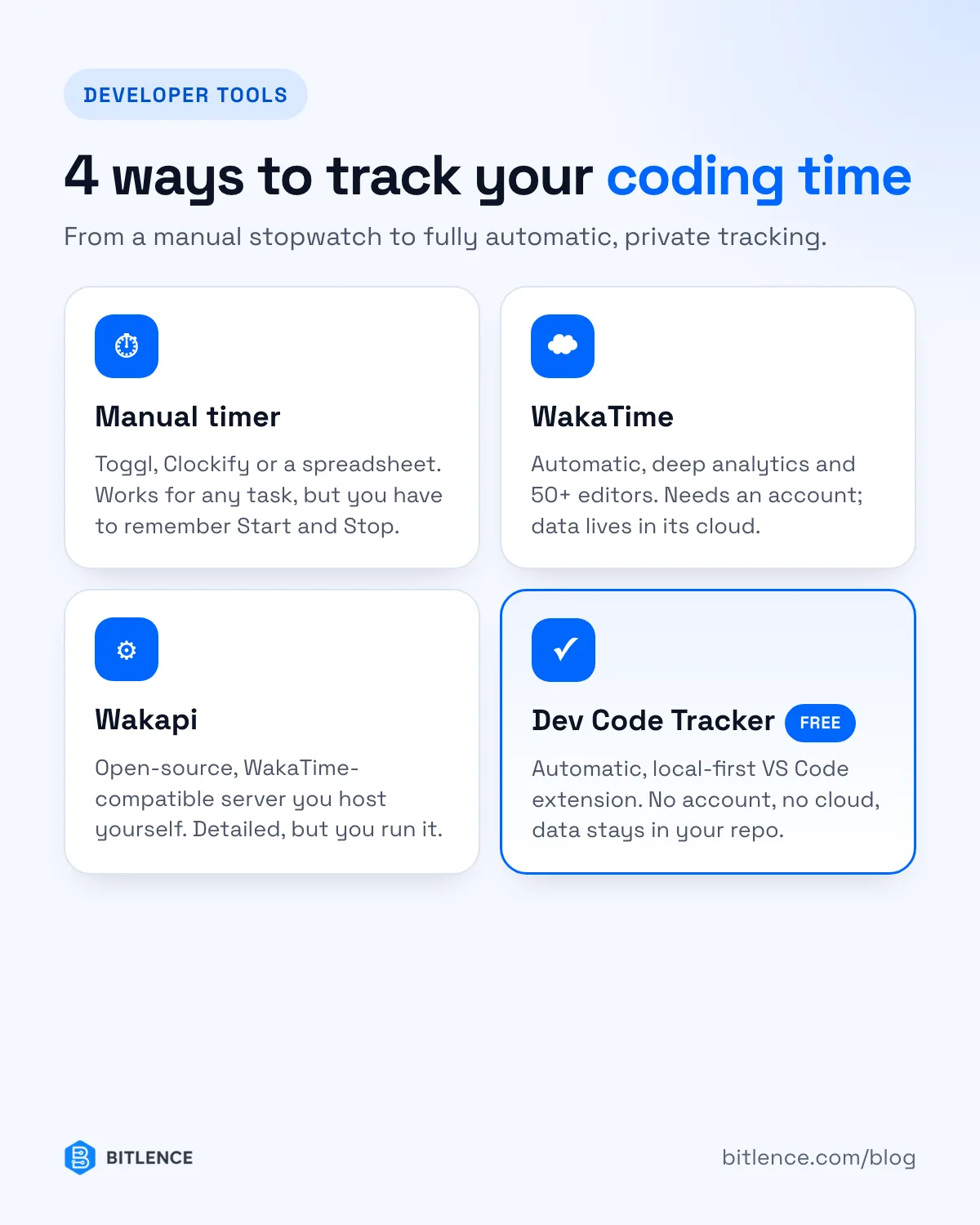
1. A manual timer (Toggl, Clockify, a spreadsheet)
You press Start when you begin and Stop when you finish. It works for any task, not just coding, and the free plans are generous.
The catch is the human part: you forget to start it, forget to stop it, and spend your evening fixing entries. For coding specifically, automatic tracking is far more accurate.
2. Self-host a WakaTime-compatible server
Wakapi is an open-source server that speaks the WakaTime API, so you keep the WakaTime editor plugins but point them at your own server. You get detailed stats and you own the data.
It's a solid choice if you're comfortable running and updating a server (Docker, a VPS, a database). It's more setup than most solo developers want for a timer.
3. A local-first extension that needs no server at all
This is the gap I wanted to fill, so I built Dev Code Tracker — a free, open-source VS Code extension. It sits in the status bar and logs every coding session per project, with no account and no cloud.
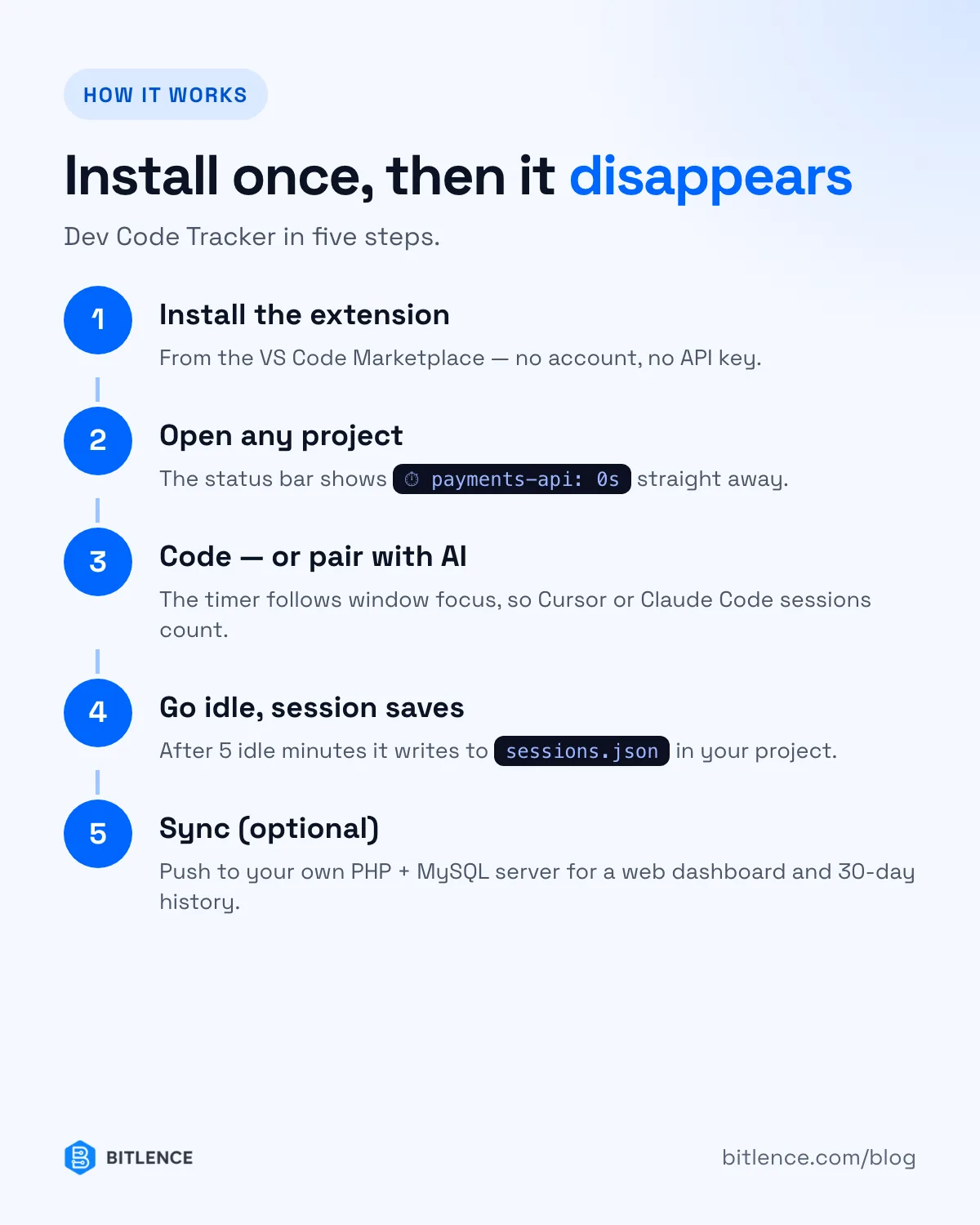
- Install and forget. Open a folder and the timer starts. Go idle (5 minutes by default) and the session saves itself.
- Your data stays in your project as plain JSON in
.devCodeTracker/sessions.json— readable by any tool, easy to back up, easy to.gitignore. - It works offline, always. There's a built-in dashboard with the last 14 days, streaks and a daily goal.
- It works with AI tools. The timer follows window focus rather than keystrokes, so time spent pairing with Cursor, Claude Code or Windsurf still counts.
- Optional sync to your own server — a small PHP + MySQL backend that runs on ordinary shared hosting — if you want history across machines.
It runs in VS Code, Cursor, Windsurf, VSCodium and any VS Code-compatible editor.
Which one should you choose?
Be honest about what you need:
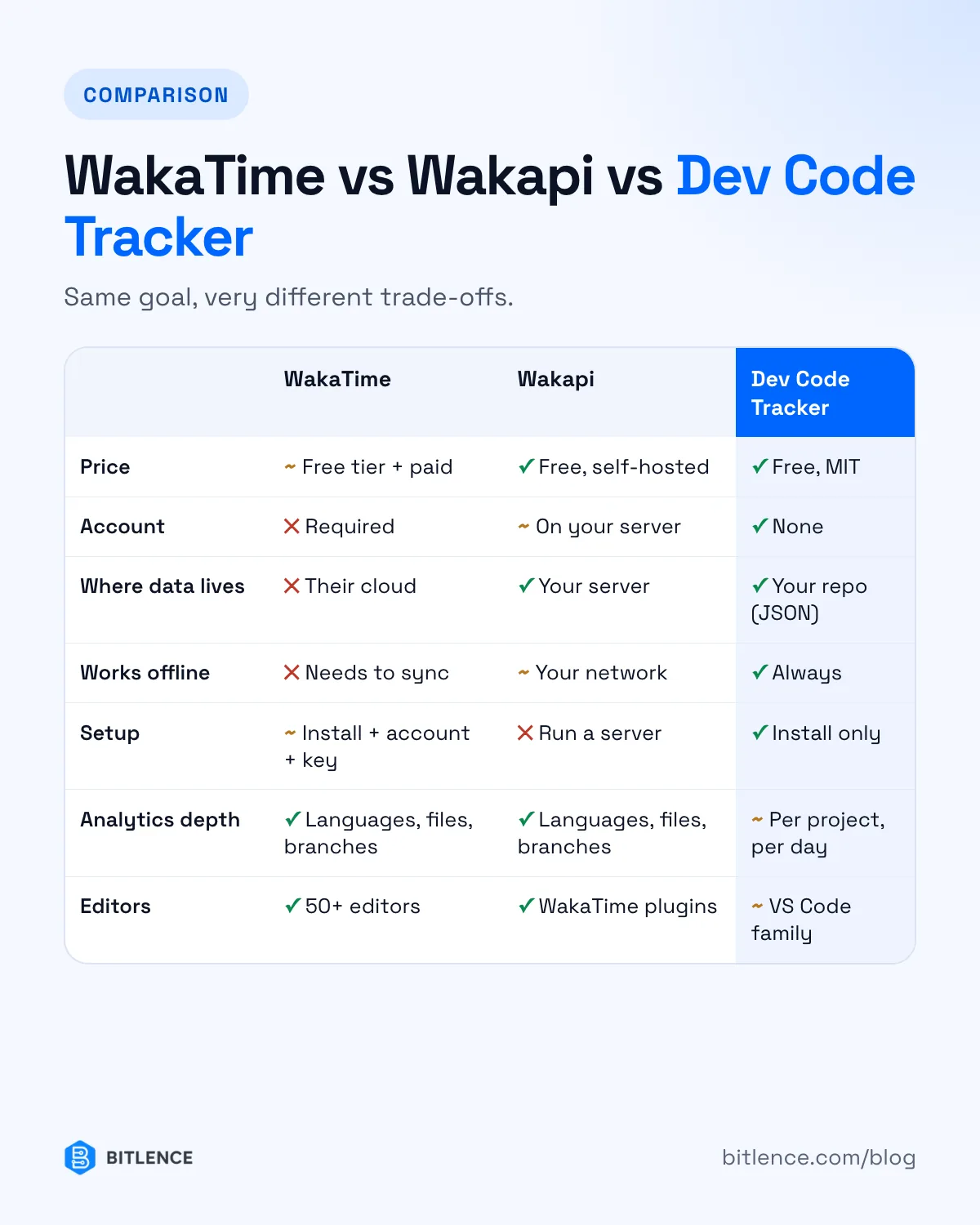
- Choose WakaTime if you want per-language and per-file analytics, team dashboards, or you use JetBrains, Vim or Emacs. It supports far more editors than anything else.
- Choose Wakapi if you want WakaTime-level detail but on your own server, and you don't mind maintaining it.
- Choose a local-first extension like Dev Code Tracker if you want accurate hours per project with zero setup, nothing leaving your machine, and no subscription.
- Choose a manual timer if you need to track non-coding work too — meetings, design, admin — in the same place.
Plenty of developers combine two: an automatic tracker for coding and a manual timer for everything else.
How to get accurate numbers, whatever you use
- Track per project, not per day. "6 hours" tells you nothing; "4h on the client API, 2h on the docs site" is what you invoice from.
- Set a sensible idle timeout. Too short and you lose time spent reading code; too long and lunch gets billed. Five minutes is a good default.
- Decide how you count AI-assisted time. If an agent writes code while you review it, that's still your working time. Focus-based tracking counts it; keystroke-based tracking may not.
- Look at the numbers weekly. A five-minute review every Friday shows which projects eat your time — that's where the real value is.
Try it
Dev Code Tracker is free and MIT-licensed. Install it from the VS Code Marketplace, or read the code on GitHub. If you work in WordPress all day, there's also a WordPress version that tracks time inside wp-admin and page builders.
Need a custom developer tool or plugin for your own team? Tell us what you need.